Community Improvements
Community Improvements
Product Updates: 11/14/2025
We're excited to share the latest improvements we've rolled out for the Community platform!
Here's what's new:
- Expanded icon options for navigation and quick links
- New privacy setting that gives more control over profile visibility in the global search
- Smarter display of discussion and directory filters which now appear only when relevant
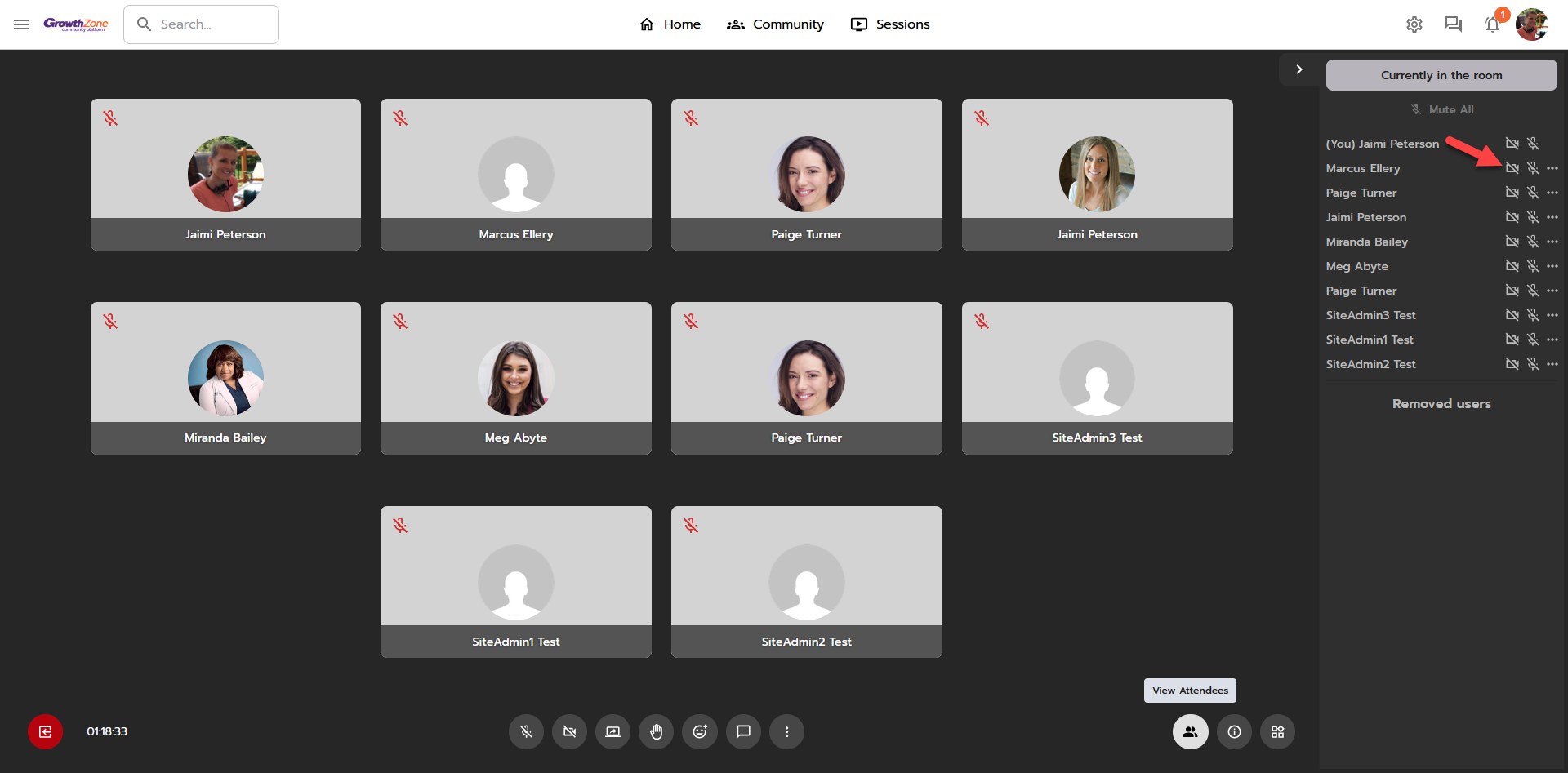
- Deactivate participant cameras during sessions, giving organizers, moderators and presenters more control
Expanded icon options
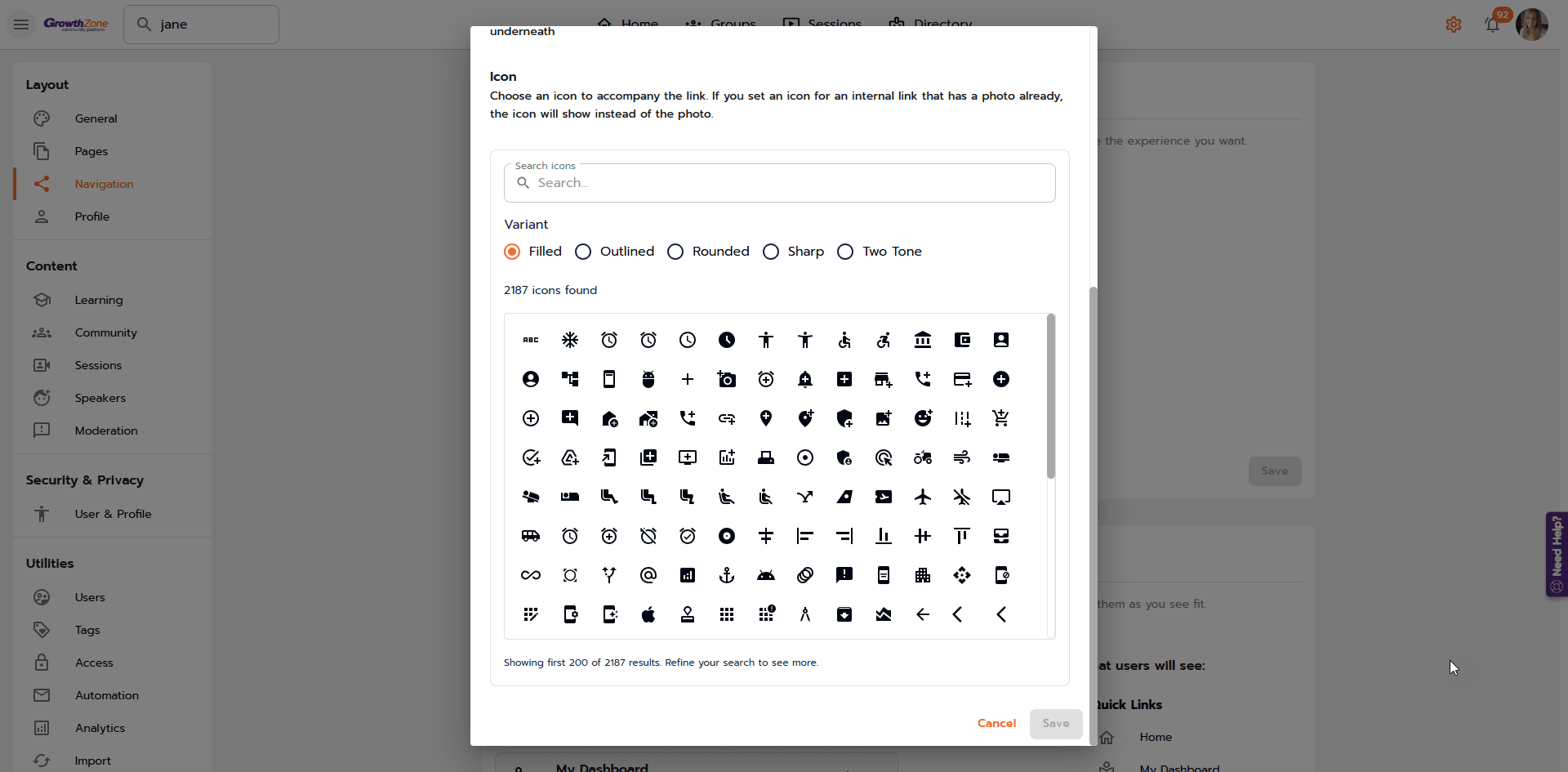
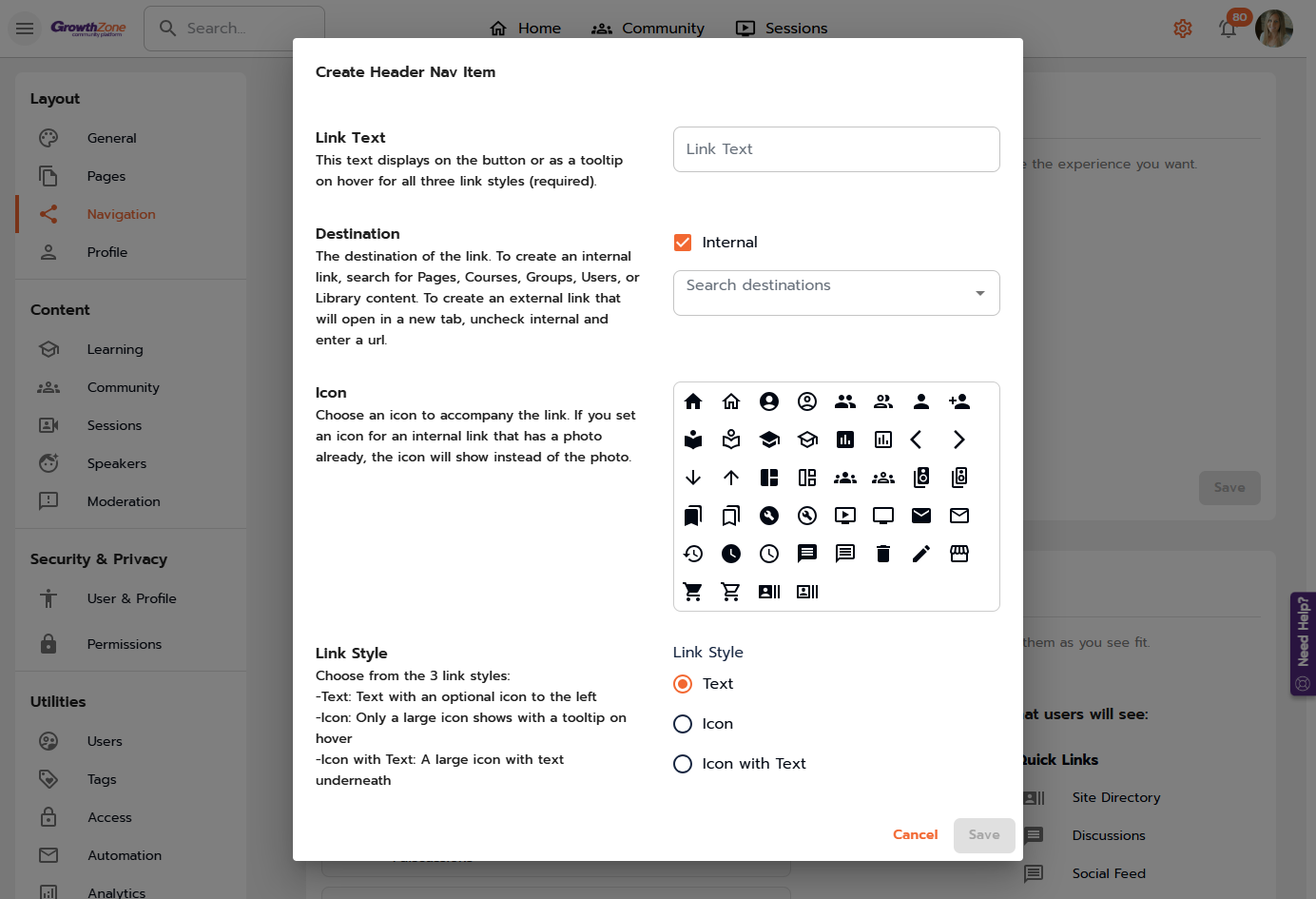
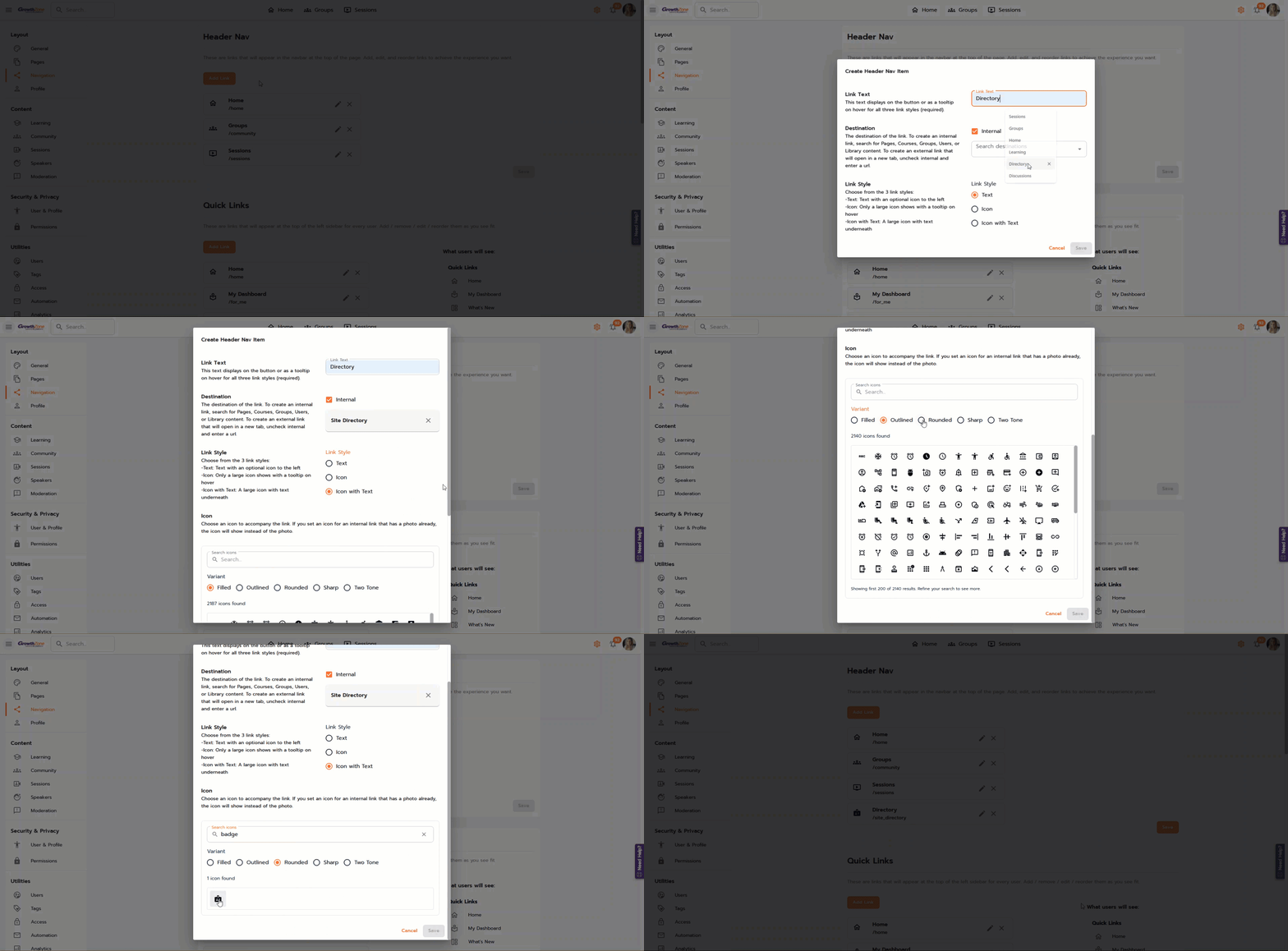
When adding pages or links to your navigation and quick links, you’ll notice a major update to the icon selection. We’ve expanded the library from 44 icons to more than 2,000, and introduced several new style options, including filled, outlined, rounded, sharp, and two-tone, giving you more flexibility and consistency with your design.
Where to find?
- Click on the gear icon
- Go to Navigation under Layout
Before
Now
Global Search
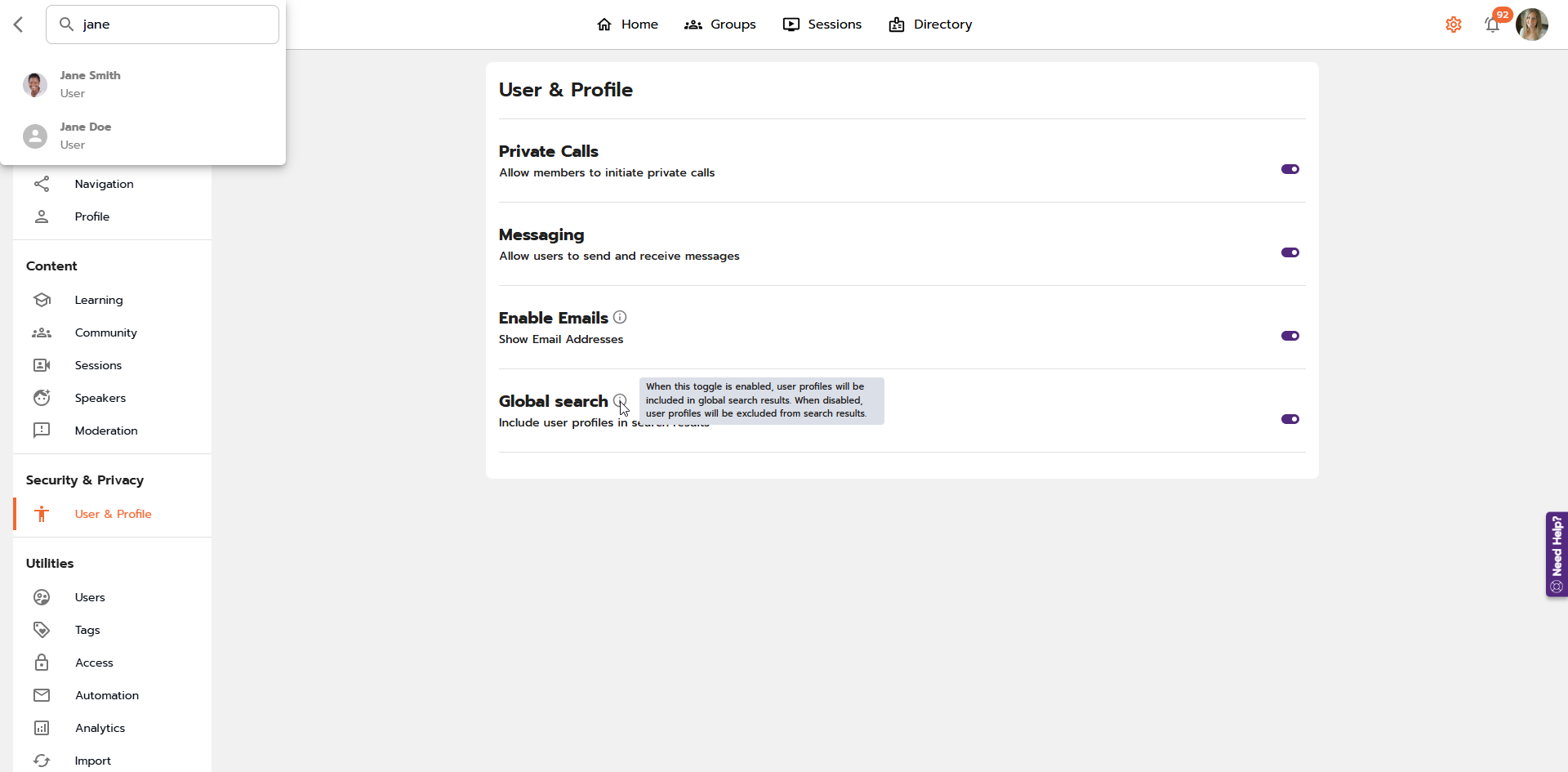
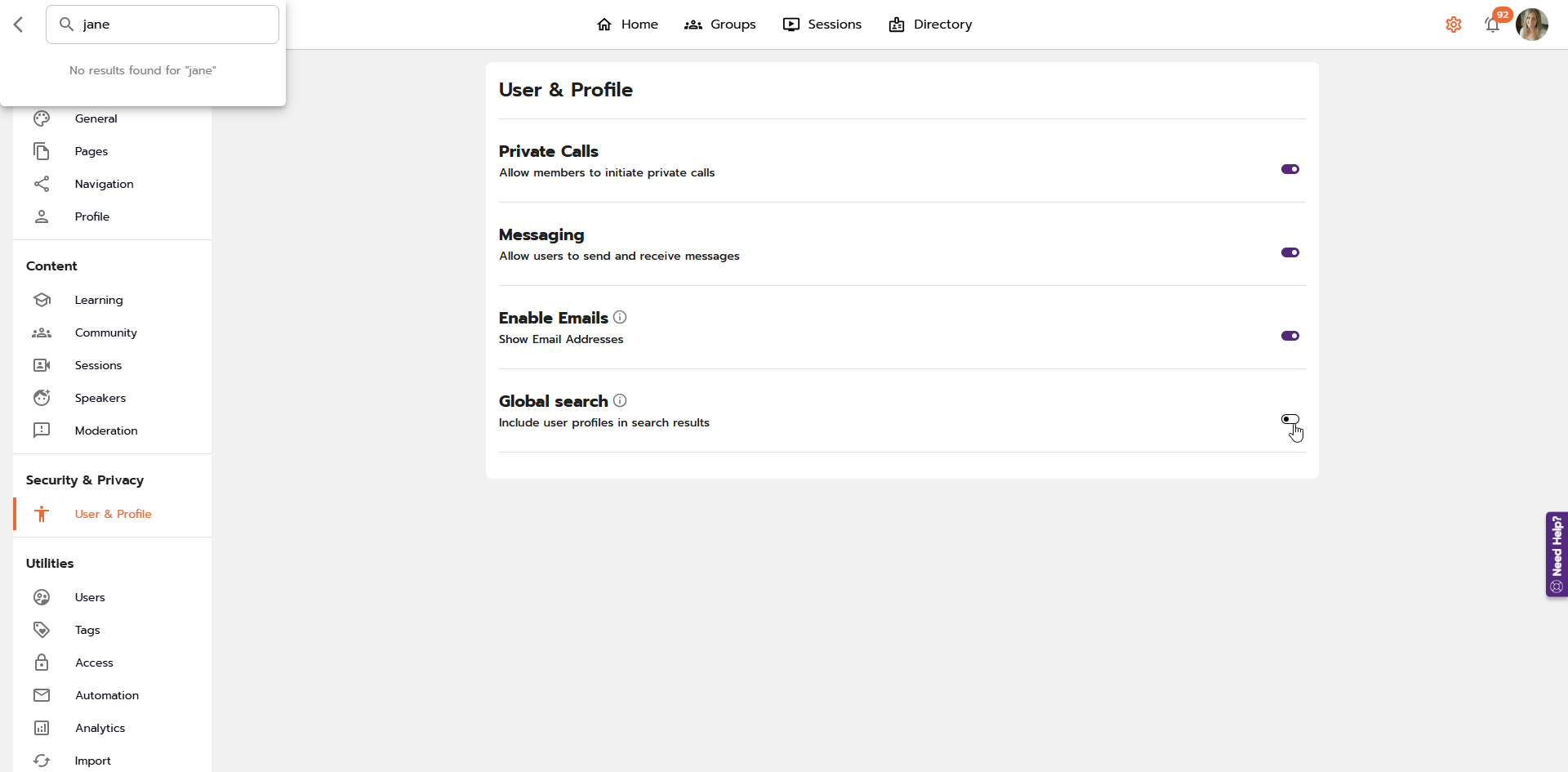
A new site-level setting allows admins to decide whether user profiles appear in global search results, giving you more flexibility and privacy control.
Where to find?
- Click on the gear icon
- Navigate to User & Profile under Security & Privacy
In the example below, user profiles are enabled in global search, so profile results show when searching for “Jane".
In the next example, user profiles are disabled in the global search, and no profile results appear when searching for "Jane".
Discussion and directory filters
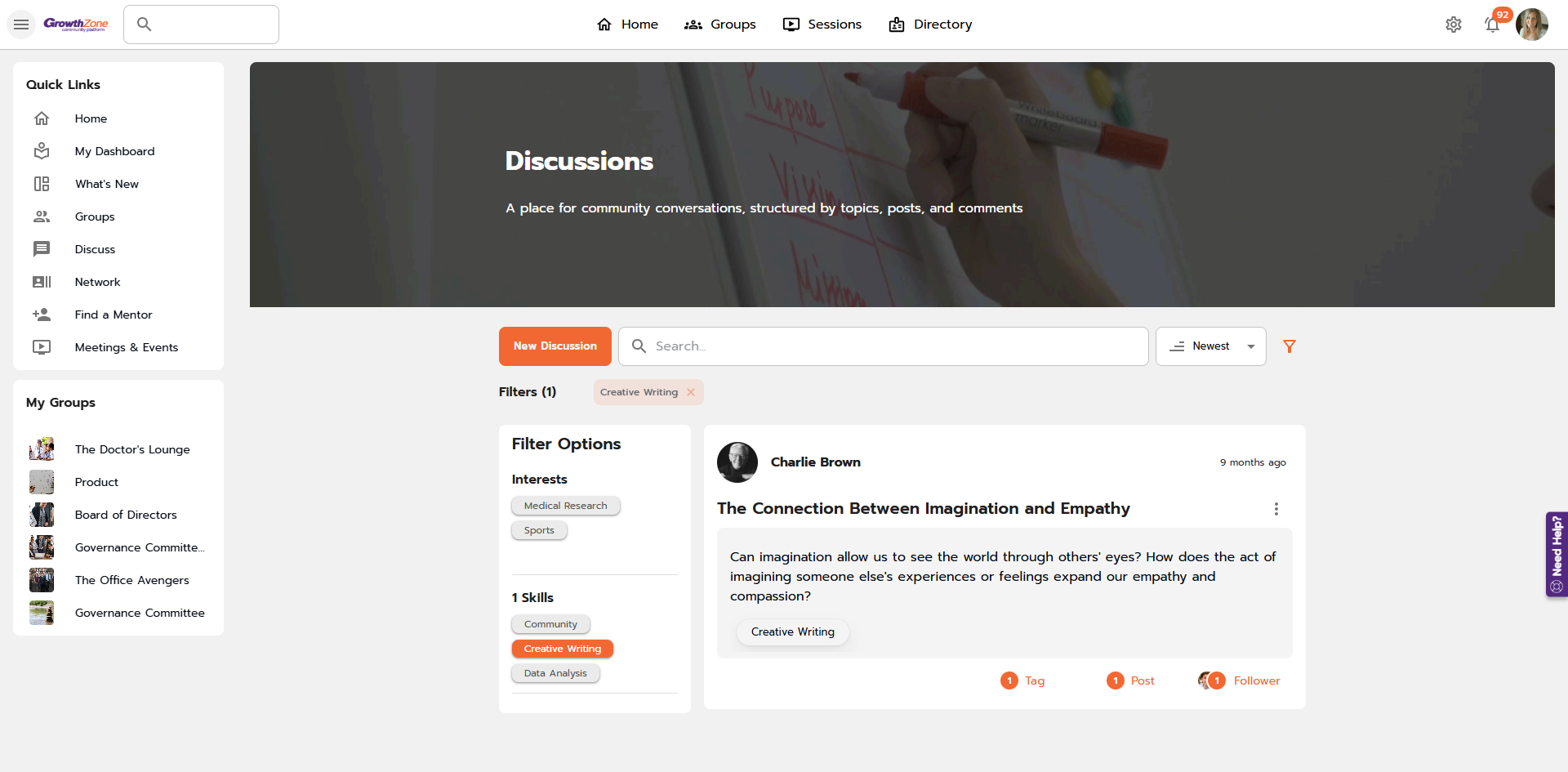
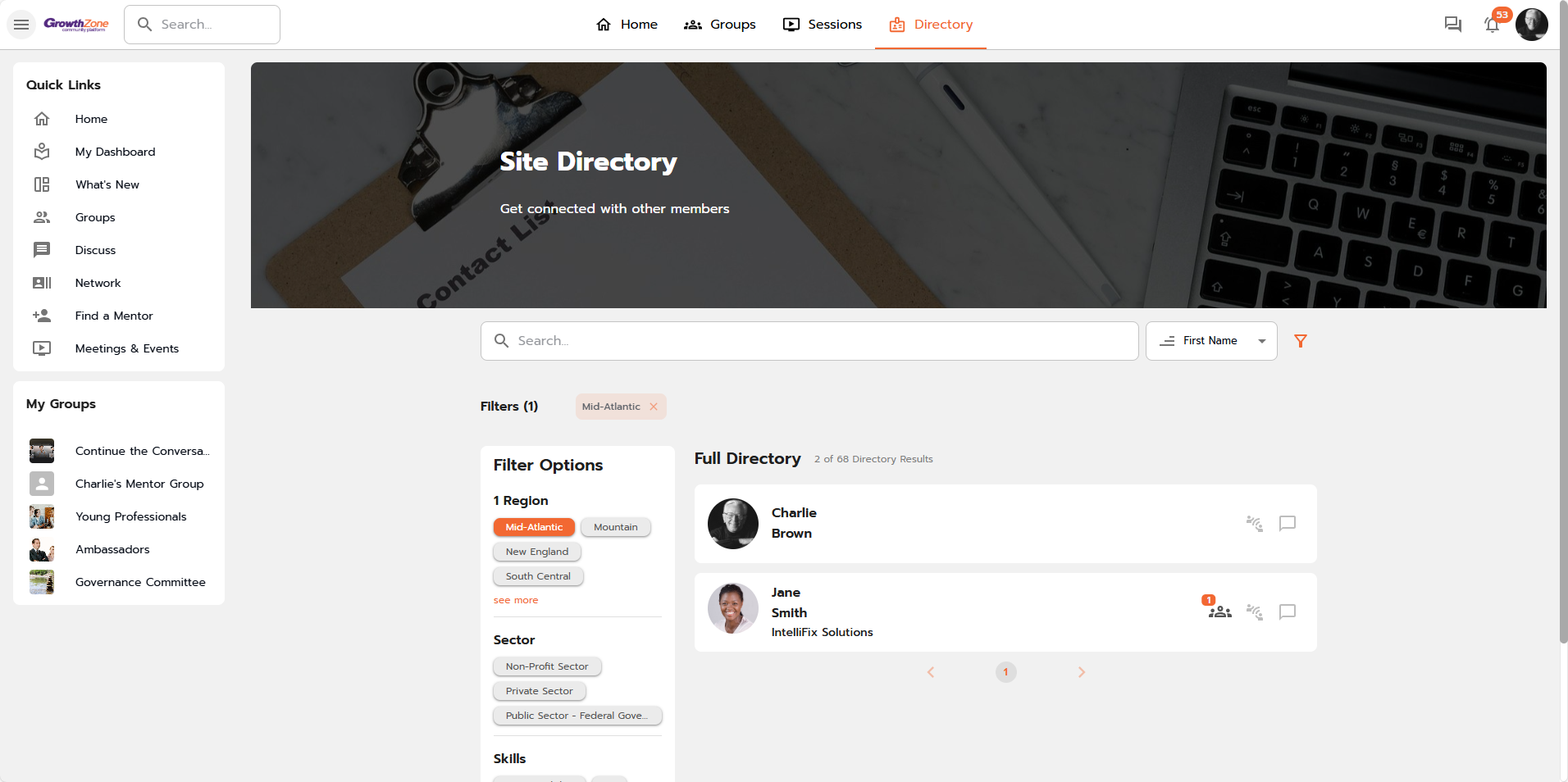
The filter options within the discussion and directory modules are now smarter and will only display tags that are actually relevant, meaning users will only see filter options that have matching results.
This update creates a cleaner, more intuitive browsing experience and ensures that the tags and tag types you choose to use are surfaced in a meaningful way.
In the example below, only five filters appear because they’ve been used to tag discussion topics, even though many more tags exist under the Interests and Skills categories.
Here's an example of the directory.
Deactivate participant cameras
Organizers, moderators and presenters now have the ability to deactivate a participant's camera during a session. This gives session leaders greater control and helps ensure a smooth, distraction-free experience for everyone.
Where to find?
- Click the "View Attendees" icon
- In the right panel, click the camera icon next to a participant to disable their video